Welcome! This user manual guides you through setup and operation of your One For All remote, offering simplified control of your home entertainment devices.
Discover how to streamline your viewing experience with a single, powerful remote, eliminating clutter and enhancing convenience.
This document details programming, features, and troubleshooting for optimal performance.
What is a One For All Remote?
One For All remotes are universal remote controls designed to replace multiple individual remotes for your TVs, DVD players, Blu-ray players, sound systems, and other devices. They consolidate control into a single, easy-to-use device, simplifying your home entertainment setup.
These remotes function by learning the infrared (IR) signals emitted by your original remotes, or by utilizing a vast code database containing commands for thousands of different brands and models. The provided instruction manual details how to program your One For All remote using either direct code entry or an auto-search function.
Essentially, it’s a single command center for all your entertainment, offering convenience and reducing clutter.
Benefits of Using a Universal Remote
Employing a One For All universal remote offers numerous advantages. Firstly, it drastically reduces clutter by eliminating the need for multiple remotes scattered around your living space. Secondly, it simplifies operation – no more searching for the correct remote for each device!
The user manual guides you through programming, allowing control of TVs, DVD players, and more with a single device. This is particularly useful for complex home theater systems. Furthermore, many One For All remotes include advanced features like macro programming (if applicable), streamlining multi-step operations.
Ultimately, a universal remote enhances convenience and improves the overall entertainment experience.
Getting Started
Let’s begin! This section details the initial setup of your One For All remote, covering unboxing, battery installation, and familiarizing yourself with the remote’s layout.
Unboxing and Contents
Carefully unpack your One For All Universal Remote and verify all components are present. Your package should include the remote control unit itself, a detailed instruction manual (often available for download as a PDF – see Resources & Support), and potentially a set of batteries, depending on the model.
Inspect the remote for any visible damage that may have occurred during shipping. If you notice any defects, contact customer support immediately. Retain the original packaging for potential returns or warranty claims. The instruction manual is crucial for successful programming and operation, so keep it in a safe and accessible location. Familiarize yourself with the remote’s physical features before proceeding to the next step.
Installing Batteries
To begin using your One For All remote, you’ll need to install batteries. Locate the battery compartment, typically on the back or underside of the remote. Slide the compartment cover open, following any indicated arrows or release mechanisms. Insert the correct type and number of batteries – usually AAA or AA – matching the polarity (+ and -) markings inside the compartment.
Ensure the batteries are securely seated. Replace the battery compartment cover until it clicks firmly into place. Incorrect battery installation can prevent the remote from functioning or damage the device. If the remote doesn’t respond after installing batteries, double-check the polarity and battery condition.
Remote Control Layout & Key Functions
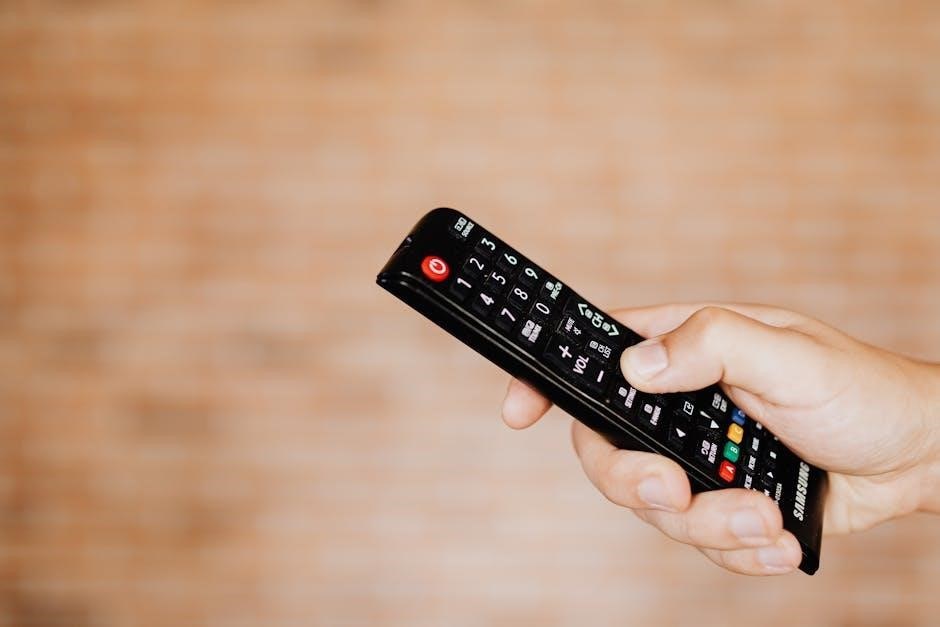
Familiarizing yourself with the remote’s layout is key to effortless operation. The Power button, usually prominently placed, controls device on/off functions. Basic controls like Volume, Channel, and Mute are intuitively positioned. Device selection buttons allow you to switch between connected devices – TV, DVD, Blu-ray, etc. – with a single press.
The Numeric Keypad enables direct channel input, while dedicated buttons may offer quick access to streaming services or input sources. Explore the menu and navigation keys for accessing device settings. Refer to the diagram within this manual for a detailed overview of each button’s function and location.
Power Button & Basic Controls
The Power button, typically red or marked with a power symbol, activates or deactivates the selected device. A single press usually controls the TV, while using it with a device selection button controls other connected equipment. Volume controls (+/-) adjust the audio level, while Channel controls (CH+/-) navigate through available channels.
The Mute button instantly silences the audio. These basic controls are universally recognized and provide immediate access to essential functions. Experiment with short and long presses; some functions may have secondary actions. Ensure the remote is pointed directly at the device for optimal responsiveness.
Device Selection Buttons
Device selection buttons, often labeled TV, DVD, AUX, or with icons, allow you to control different home entertainment devices. Pressing the corresponding button configures the remote to send signals to that specific device. Some remotes feature a ‘Setup’ or ‘Device’ button alongside these selections, initiating the programming process for a new device.
Ensure the correct device is selected before using other controls. A lit indicator or on-screen display confirmation usually signifies the active device. These buttons streamline operation, eliminating the need to reprogram the remote for each device every time you switch sources. Familiarize yourself with the button layout for quick and efficient control.
Numeric Keypad & Channel Input
The numeric keypad allows direct channel entry for quick access to your favorite stations. Simply input the channel number using the 0-9 keys. Many remotes also include a ‘Channel Up/Down’ button for sequential channel browsing.
A dedicated ‘Input’ or ‘Source’ button cycles through available input sources on your TV (HDMI1, HDMI2, AV, etc.). Some models feature a ‘Guide’ button for accessing the electronic program guide. Utilize these features for streamlined navigation. Remember that some devices may require specific code entry for the keypad to function correctly. Refer to the programming section for detailed instructions.
Programming Your Remote
Programming your One For All remote is essential for controlling your devices. This section details methods like direct code entry and auto-search, ensuring compatibility.
Understanding Programming Methods
Your One For All remote offers several ways to connect with your devices. Direct code entry requires finding the specific code for your TV brand from the included code list or online resources. This method is precise but needs the correct code.
Alternatively, the auto-search function systematically tests codes until your TV responds, typically by powering off. This is useful if you can’t locate the code, but it can take time.
Some remotes also support a learning function, allowing them to copy signals from your original remotes. Understanding these methods ensures successful setup and control of all your entertainment systems. Refer to the manual for detailed instructions on each programming approach.
Programming via Direct Code Entry
Direct code entry is a reliable programming method. First, find the correct code for your TV brand in the manual’s code list or online at the One For All support website. Ensure you select the correct manufacturer; codes vary significantly.
Once located, power on your TV. Then, on the remote, press and hold the Setup button until the indicator light activates. Enter the code using the numeric keypad, and the indicator light should blink or turn off, confirming successful entry.
Test the remote by attempting basic functions like volume control and channel changing. If it doesn’t work, repeat the process with a different code for your brand.
Finding the Correct Code for Your TV Brand
Locating the correct code is crucial for successful programming. Your One For All remote’s manual includes an extensive code list organized by TV brand. Begin by identifying your TV’s manufacturer precisely – codes differ even within the same country.
If the manual’s list is insufficient, visit the One For All support website. Utilize their online code finder tool, inputting your TV brand and model number for a tailored code suggestion. Multiple codes may be listed; it’s recommended to try them sequentially.
Remember to consult resources like the downloaded PDF manual for the most up-to-date code information.
Entering the Code Successfully
Once you’ve identified the correct code, follow these steps for successful entry. First, ensure your TV is powered on. Press and hold the SET or SETUP button on your One For All remote until the indicator light illuminates. Then, using the numeric keypad, carefully enter the five-digit code.
After entering the code, the indicator light should blink or turn off, signaling successful code acceptance. Now, test the remote by attempting basic functions like power, volume, and channel changing. If the remote doesn’t respond, repeat the process with the next code listed for your TV brand.

Refer to the manual for specific button names.
Programming via Auto Search
If direct code entry fails, the auto-search function offers an alternative programming method. Begin by powering on your TV. Press and hold the SET or SETUP button until the indicator light activates. Then, press and hold the POWER button on the remote. The remote will now begin transmitting power-off signals to your TV.
Pay close attention! When your TV responds by powering off, immediately release both the SET/SETUP and POWER buttons. This confirms the remote has found a compatible code. Test all functions to ensure full compatibility. If the TV doesn’t respond after several attempts, consult the manual for further assistance.
Initiating the Auto Search Function
To begin the auto-search process, ensure your TV is powered on. Press and hold the SET or SETUP button on your One For All remote until the indicator light illuminates, signaling the remote is in programming mode. Subsequently, press and firmly hold the POWER button. The remote will systematically transmit a series of power-off signals to your television.
During this process, carefully observe your TV. The remote cycles through numerous codes, attempting to find one that corresponds to your TV’s brand and model. Be prepared to react quickly when your TV powers off – this indicates a successful code match!
Responding to TV Power-Off Signals
If your television powers off during the auto-search, immediately release the SET or SETUP button. This action confirms the remote has located a compatible code for your TV. Following this, attempt to operate basic functions like volume control and channel changing to verify full functionality.
If the remote doesn’t operate correctly after the TV powers off, repeat the auto-search process. Sometimes, multiple codes exist for a single brand, and a subsequent search may yield a more accurate result. Remember to test all essential functions after each attempt to ensure optimal performance with your One For All remote.
Programming for Other Devices (DVD, Blu-ray, etc.)
To control devices beyond your TV – such as DVD players, Blu-ray players, or sound systems – repeat the programming process. Begin by selecting the appropriate device type using the dedicated device selection buttons on your One For All remote;
Then, utilize either the direct code entry method or the auto-search function, as described previously. Consult the code list included with your remote or available online to find codes specific to your device’s brand and model. Thoroughly test all functions after programming each device to ensure seamless operation and complete control of your home entertainment system.
Advanced Features & Troubleshooting
Explore advanced options like learning and macros (if supported). Resolve common issues – unresponsive remote, incorrect codes – and learn how to reset to factory settings.
Using the Learning Function (If Applicable)
The learning function, available on select One For All models, allows your remote to mimic signals from your original device’s remote control. This is particularly useful for devices lacking a code within the remote’s database.
To initiate learning, enter learning mode (refer to your specific model’s instructions). Then, point both remotes – your One For All and the original – towards each other. Press the button on the original remote you wish to copy, and then press the corresponding button on your One For All remote.
Successful learning is usually indicated by a light or on-screen confirmation. Repeat this process for each desired button. Remember to consult your full instruction manual (available online as a PDF) for detailed steps and troubleshooting tips specific to your remote model;
Macro Programming (If Applicable)
Macro programming, a feature on advanced One For All remotes, enables you to combine multiple commands into a single button press. This streamlines complex operations, like powering on your TV, receiver, and Blu-ray player simultaneously.
To create a macro, enter macro programming mode (consult your model’s manual for specific instructions). Record each desired command – power on, input selection, volume up – in the correct sequence. The remote stores these commands as a single macro.
Assign the macro to a dedicated button. Now, pressing that button executes the entire sequence automatically. Download the full instruction manual (PDF) from the official website for detailed guidance and troubleshooting. Macro functionality significantly enhances convenience and simplifies home theater control.
Troubleshooting Common Issues
Remote Not Responding: First, ensure fresh batteries are correctly installed. Verify no obstructions block the IR signal between the remote and your device. Try resetting the remote to factory settings (see manual for instructions). If issues persist, consult the online FAQs or contact customer support.
Incorrect Code Entered: Double-check the code against the list for your TV brand. Re-enter the code carefully, ensuring accuracy; If the auto-search fails, manually try several codes from the list. A wrong code results in limited or no functionality.
For further assistance, download the full instruction manual (PDF) or visit the online support section.
Remote Not Responding
Initial Checks: Begin by verifying the batteries are fresh and correctly installed, paying attention to polarity. Confirm there are no physical obstructions – like objects or even your hand – blocking the infrared (IR) signal path between the remote and your television or device. Ensure the device’s IR receiver is uncovered and functioning.
Reset Attempt: A simple reset can often resolve minor glitches. Refer to the section on resetting your remote to factory settings within this manual for detailed instructions. If the remote still fails to respond after a reset, proceed to the next troubleshooting step.
Further Support: Consult the online FAQs or contact customer support for more in-depth assistance.
Incorrect Code Entered
Code Verification: If your remote isn’t controlling your device after code entry, double-check the code you inputted against the code list for your specific TV brand. Ensure accurate digit-by-digit entry, as even a single incorrect number can prevent functionality. Refer back to the ‘Finding the Correct Code’ section for assistance.
Retry & Alternative Codes: If confident in your entry, attempt the code entry process again. Many brands have multiple compatible codes; try alternative codes listed for your device.
Auto Search: If code entry repeatedly fails, consider utilizing the auto-search programming method as a reliable alternative. This method bypasses the need for specific codes.
Resetting Your Remote to Factory Settings
Restoring Defaults: Resetting your One For All remote returns it to its original factory settings, erasing all programmed codes and customizations. This is useful for troubleshooting persistent issues or preparing the remote for use with new devices.
Reset Procedure: Typically, resetting involves simultaneously pressing and holding specific button combinations – often the ‘Setup’ and ‘Power’ buttons – for several seconds. Consult your specific model’s instruction manual (available for download online) for the precise button sequence.
Confirmation: A visual confirmation, such as a flashing light, usually indicates a successful reset. After resetting, you’ll need to reprogram the remote for each device.

Specific Brand Setup Guides
Tailored Instructions: Below are dedicated setup guides for popular TV brands – Samsung, LG, and Sony – to ensure seamless integration with your One For All remote.
Samsung TV Setup
Programming for Samsung TVs: Begin by ensuring your Samsung TV is powered on. Access the code list (available online or within the full instruction manual PDF) and locate the codes specifically designated for Samsung televisions.
Utilize the direct code entry method, carefully inputting the four or five-digit code using the numeric keypad on your One For All remote. After entering the code, the remote will attempt to communicate with your Samsung TV.
Confirmation: Successful programming is indicated by your TV powering off and then back on, or by the remote controlling basic functions like volume and channel changing. If unsuccessful, try alternative codes from the list.
For further assistance, consult the comprehensive PDF manual or online support resources.
LG TV Setup
Programming for LG TVs: Start with your LG television powered on. Refer to the code list – found within the complete instruction manual PDF or online – and identify the codes tailored for LG televisions.
Employ the direct code entry method, meticulously entering the four or five-digit code using the remote’s numeric keypad. Upon code entry, the One For All remote will attempt to establish communication with your LG TV.
Successful Setup: Confirmation of successful programming is typically signaled by your TV turning off and then on again, or by the remote’s ability to control core functions like volume and channel selection.
If the initial attempt fails, systematically try other codes listed for LG. For detailed guidance, access the full PDF manual or explore online support options.
Sony TV Setup
Programming for Sony TVs: Begin by ensuring your Sony television is powered on. Consult the comprehensive code list – available in the full instruction manual PDF or through online resources – to locate codes specifically designed for Sony televisions.
Utilize the direct code entry method, carefully inputting the four or five-digit code using the remote’s keypad. The One For All remote will then attempt to connect with your Sony TV.
Successful Connection: A successful programming outcome is usually indicated by your TV powering off and then back on, or by the remote’s ability to control essential functions like volume and channel changes.
Should the first attempt prove unsuccessful, systematically test other Sony-specific codes. For in-depth assistance, refer to the complete PDF manual or explore online support channels.

Resources & Support
Need help? Access the full instruction manual PDF online, explore FAQs, or contact customer support for assistance with your One For All remote.
Downloading the Full Instruction Manual (PDF)
Accessing the complete instruction manual in PDF format provides a comprehensive resource for understanding all features and functionalities of your One For All universal remote. This detailed document, often exceeding 150 pages, includes multi-language support and in-depth explanations for every step of the setup and programming process.
You can easily download the PDF from various online sources, including the official One For All website and reputable manuals libraries like ManualsLib. The PDF version allows for convenient offline access, enabling you to reference the manual anytime, anywhere, without requiring an internet connection. It’s a valuable tool for troubleshooting, exploring advanced features, and ensuring you maximize the potential of your remote control.
Online Support & FAQs
One For All provides extensive online support resources to assist you with any questions or issues you may encounter. Their official website features a dedicated support section with a comprehensive FAQ (Frequently Asked Questions) database, addressing common setup, programming, and troubleshooting scenarios.
These online resources are designed to offer quick and easy solutions to everyday problems, often eliminating the need to contact customer support directly. You can find helpful articles, video tutorials, and detailed guides covering a wide range of topics related to your universal remote. Utilizing these online tools can save you time and ensure a smooth, hassle-free experience with your One For All device.
Contacting Customer Support
If you’ve explored the online resources and FAQs but still require assistance, One For All offers dedicated customer support channels. While specific contact details may vary by region, their website typically provides a contact form for submitting inquiries.
Alternatively, you may find a phone number or email address listed for direct communication with a support representative. Be prepared to provide your remote control model number and a detailed description of the issue you are experiencing. Prompt and helpful support is available to resolve any challenges you face while setting up or using your One For All universal remote, ensuring a positive user experience.
Comments