Wii U Console Manual: A Comprehensive Guide
This guide provides reliable instructions for safe operation and maintenance of your new Wii U console, ensuring a successful and enjoyable gaming experience.
Nintendo offers comprehensive PDF manuals and online resources, alongside troubleshooting guides addressing common issues like dead pixels and disconnections.
Explore pre-installed software details, system updates, and controller options – including GamePad, Pro Controller, and Wii Remote Plus compatibility.
Welcome to the world of Wii U, Nintendo’s innovative home console! This system blends traditional gaming with unique touchscreen experiences via the Wii U GamePad.
The Wii U offers a diverse library of games, from first-party Nintendo exclusives to multi-platform titles, catering to all player preferences.
Accessing the electronic manual through the HOME Button or Wii U Browser provides detailed guidance on system features and troubleshooting.
This console supports multiple controller options, enhancing gameplay versatility and accommodating various playstyles. Prepare for a new era of interactive entertainment!
System Overview and Components
The Wii U system comprises several key components: the console itself, the Wii U GamePad, and various controller options like the Pro Controller and Wii Remote Plus.
The console features ports for connecting to a TV via HDMI or composite video, as well as USB ports for accessories and storage expansion.
The GamePad boasts a built-in touchscreen, motion controls, and speakers, offering unique gameplay possibilities. It also functions as a standard Wii Remote.
Understanding these components and their functionalities is crucial for optimal setup and enjoyment of your Wii U gaming experience.

Setting Up Your Wii U Console
Initial setup involves connecting the Wii U console to your TV using an HDMI cable for optimal visual quality, or a composite cable as an alternative.
Ensure the console is positioned in a well-ventilated area to prevent overheating. Connect the power adapter and turn on the system.
Follow the on-screen prompts to configure your region, language, and network settings. The system will guide you through the initial configuration process.
Proper setup is essential for a seamless and enjoyable gaming experience with your new Wii U console.
Initial System Setup
The first-time setup guides you through essential configurations, including selecting your language and region, establishing internet connectivity, and creating a user account.
You’ll be prompted to agree to the Nintendo Network Agreement and set parental controls if desired. This ensures a safe gaming environment.
System updates will automatically download and install, ensuring optimal performance and access to the latest features. This process may take some time.
Carefully follow the on-screen instructions to complete the initial setup and begin enjoying your Wii U console.
Connecting to a TV
Ensure your TV is compatible with the Wii U’s video output – HDMI is recommended for the best experience. Locate the HDMI port on both the console and your TV.
Connect the HDMI cable securely to both devices. If using an older TV without HDMI, an AV cable (component video) can be used as an alternative.
Power on your TV and select the correct input source corresponding to the connected HDMI or AV port. The Wii U menu should then appear on your screen.
Adjust the screen resolution settings within the Wii U’s system settings for optimal visual clarity.
Understanding the Wii U GamePad
The Wii U GamePad is a unique controller featuring an embedded touchscreen, offering innovative gameplay experiences. It functions as both a controller and a second screen, displaying game information.

Explore the various buttons, including the A, B, X, Y buttons, control sticks, and shoulder buttons. The touchscreen enables intuitive interaction within games and the system menu.
Utilize the built-in microphone and speaker for voice chat and in-game audio. The GamePad also supports Near Field Communication (NFC) for compatible amiibo figures.
Remember to regularly charge the GamePad to ensure uninterrupted gameplay.
GamePad Features and Buttons
The Wii U GamePad boasts a 6.2-inch touchscreen, providing a unique interactive experience. Key buttons include A, B, X, and Y for actions, plus a directional pad for navigation.
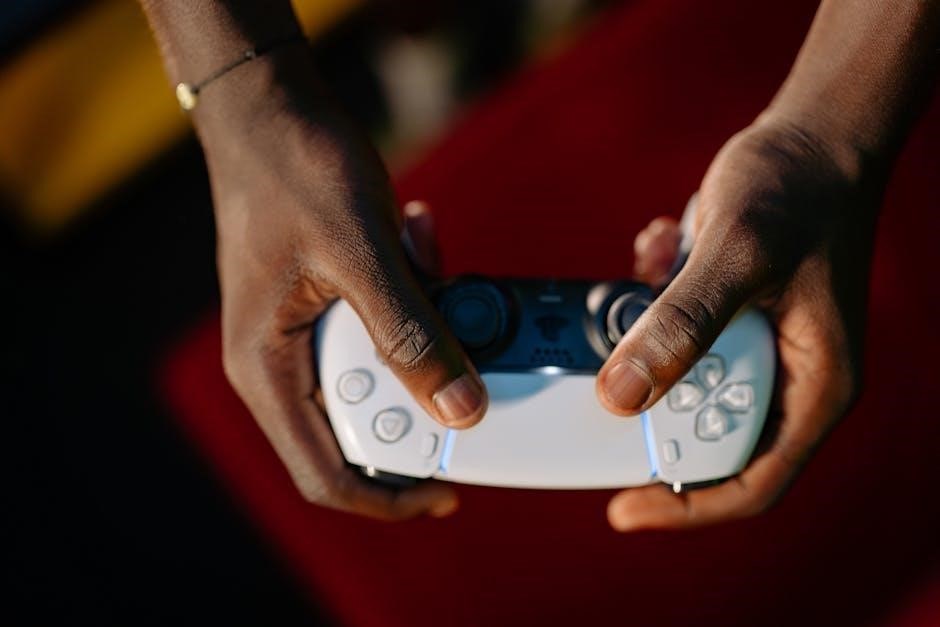
Two analog control sticks offer precise movement control, while L and R buttons, along with ZL and ZR triggers, provide additional inputs. A Home Button accesses the system menu.
The touchscreen supports touch input, and a built-in microphone enables voice chat. A near-field communication (NFC) reader supports amiibo functionality. Power and Sync buttons are also present.
These features combine to create a versatile and immersive gaming experience.
Charging the GamePad
The Wii U GamePad requires regular charging for optimal use. Connect the included AC adapter to the GamePad’s charging port and a wall outlet.
A full charge typically takes approximately 2.5 to 3 hours. The GamePad’s screen displays the charging status, indicating when it’s complete.
Battery life varies depending on usage, but generally lasts between 3 to 5 hours on a full charge. Avoid prolonged exposure to extreme temperatures during charging.
Proper charging ensures uninterrupted gameplay and extends the GamePad’s battery lifespan.
Navigating the Wii U Menu
The Wii U Menu serves as the central hub for accessing games, applications, and system settings. Utilize the Wii U GamePad or compatible controllers for navigation.
The Home Menu interface presents icons representing installed software. Select an icon with the control stick or touch screen to launch the corresponding application.
A green question mark icon provides access to helpful tutorials and the electronic manual, offering guidance on system features and troubleshooting;

Explore the intuitive layout to customize your Wii U experience.
Home Menu Interface
The Wii U Home Menu displays icons representing installed games and applications, arranged for easy access. Users can launch software by selecting icons with the Wii U GamePad’s touchscreen or a compatible controller’s control stick.
Customization options allow rearranging icons to suit individual preferences. The menu also features a notification area displaying system alerts and updates.
A prominent feature is the access point to the electronic manual via a question mark icon, offering immediate assistance and guidance.
This interface is designed for intuitive navigation.
System Settings Configuration
The Wii U’s System Settings allow users to personalize their console experience. Options include adjusting display settings for TV resolution and aspect ratio, configuring audio output, and managing internet connectivity.
Users can also manage user accounts, data storage, and parental controls to restrict access to certain content or features.
Furthermore, settings control system updates, data transfer, and sensor bar calibration for optimal Wii Remote Plus functionality.
Proper configuration ensures a tailored and secure gaming environment.
Wii U System Software
The Wii U system software encompasses pre-installed applications like the Wii U Menu, offering access to games, settings, and the Nintendo eShop. The browser facilitates internet access directly on the console.
Regular system updates are crucial for maintaining optimal performance, enhancing security, and adding new features. These updates are typically downloaded and installed automatically.
Maintenance includes managing storage space, archiving save data, and addressing potential software glitches. The electronic manual provides guidance on these processes.
Effective software management ensures a smooth and enjoyable gaming experience.
Pre-installed Software
The Wii U console arrives with several pre-installed software applications designed to enhance the user experience. Key among these is the Wii U Menu, serving as the central hub for launching games and accessing system settings.
Additionally, the Wii U features a built-in internet browser, enabling users to surf the web directly on their television. This allows access to online manuals and support resources.
Nintendo eShop is also pre-installed, providing a digital storefront for purchasing and downloading games and applications. These tools offer immediate functionality.
System Updates and Maintenance
Regular system updates are crucial for maintaining optimal Wii U performance and security. These updates, delivered via the internet, often include bug fixes, new features, and enhanced compatibility with games and accessories.
The console automatically checks for updates, but users can also manually initiate a search through System Settings. Proper maintenance involves keeping the console adequately ventilated.
Ensure sufficient storage space is available for updates and downloaded content. Periodically clearing the cache can also improve system responsiveness and overall stability.

Controller Options

The Wii U offers versatile control schemes with three compatible controllers: the innovative Wii U GamePad, the traditional Wii U Pro Controller, and the familiar Wii Remote Plus.
The GamePad features a built-in screen and motion controls, enhancing gameplay experiences. The Pro Controller provides a more conventional gaming feel, ideal for extended play sessions.
Wii Remote Plus compatibility allows for motion-controlled gaming, leveraging existing Wii accessories. Detailed instructions for setup and usage of each controller are available in the system manual.
Wii U GamePad Usage
The Wii U GamePad is central to the console’s experience, featuring a touchscreen, motion controls, and built-in speakers. It functions as both a controller and a second screen, displaying unique game information.
Utilize the touchscreen for intuitive interactions, and the motion sensors for immersive gameplay. The GamePad can also be used for off-TV play, allowing gaming without a connected television.
Refer to the system manual for detailed button layouts, charging instructions, and troubleshooting tips regarding connection issues or unresponsive controls. Explore its full potential!
Wii Pro Controller Setup
The Wii U Pro Controller offers a traditional control scheme, appealing to players familiar with classic gamepad designs. Setting it up is straightforward: ensure the console is powered on and navigate to System Settings.
Within the Controllers section, select “Pro Controllers” and then “Add Pro Controller.” Follow the on-screen prompts, typically involving pressing the Sync button on the controller.
Once synced, the Pro Controller is ready for use in compatible games. Consult the system manual for detailed instructions and troubleshooting steps if connection issues arise.
Wii Remote Plus Compatibility
The Wii U maintains compatibility with Wii Remotes and Wii Remote Plus controllers, expanding your control options. These controllers utilize motion controls for unique gameplay experiences in supported titles.
To connect a Wii Remote, ensure the console is powered on and open the System Settings. Navigate to Controllers, then “Wii Remote Plus.” Follow the on-screen instructions to sync.
Wii Remote Plus offers enhanced motion sensing, while standard Wii Remotes require a MotionPlus adapter. Refer to the Wii U manual for detailed setup and troubleshooting guidance.
Troubleshooting Common Issues
The Wii U manual’s troubleshooting section addresses frequent player concerns, including GamePad connection problems and frustrating audio/visual disconnections during gameplay. These issues often stem from signal interference or incorrect settings.
Dead pixel information is also provided, explaining the characteristics of liquid crystal displays and Nintendo’s policies regarding acceptable pixel defects. Consult the manual for specific troubleshooting steps.
For persistent problems, the manual directs users to Nintendo’s customer support resources, offering further assistance and potential solutions to ensure a smooth gaming experience.
GamePad Connection Problems
The Wii U manual details troubleshooting steps for GamePad connection issues, a common concern for users. Initial checks involve ensuring the GamePad is sufficiently charged and within range of the console, minimizing interference.
If problems persist, the manual instructs users to resynchronize the GamePad via the system settings, often resolving connectivity hiccups. It also suggests checking for software updates, as these frequently include connection improvements.
For complex cases, the manual advises contacting Nintendo support, providing detailed information about the issue for effective assistance.
Audio and Visual Disconnections
The Wii U operations manual addresses audio and visual disconnections, acknowledging the characteristics of liquid crystal displays can sometimes cause these issues. Initial troubleshooting involves verifying all cable connections – HDMI, AV cables – are secure at both ends;
Users are advised to test different HDMI ports on their TV and try a different HDMI cable to rule out external factors. The manual also suggests checking the Wii U’s resolution settings.
If the problem continues, a system reset or contacting Nintendo support for further assistance is recommended.
Dead Pixel Information
The Wii U manual acknowledges that liquid crystal displays, like the GamePad’s screen, can occasionally exhibit dead pixels – points that appear permanently black or illuminated. These are inherent characteristics of the technology and don’t necessarily indicate a defect.
Nintendo’s troubleshooting guide clarifies that a certain number of dead pixels within specific tolerances are considered acceptable and won’t qualify for a replacement.
The manual provides details on assessing the number and location of dead pixels to determine eligibility for service, directing users to contact support for evaluation.
Accessing the Electronic Manual
The Wii U features a readily accessible electronic manual directly on the console. From the Wii U Menu, simply press the HOME Button. Then, locate and select the green question mark icon situated on the right side of the screen.
Within this help section, users can browse various topics and find answers to frequently asked questions regarding system operation and troubleshooting.
Alternatively, the Wii U Browser can be utilized to access the manual online, offering a convenient way to consult the documentation during gameplay or setup.
Finding the Manual via the HOME Button
To access the electronic manual, begin by pressing the HOME Button while on the Wii U Menu. This action will bring up a selection of options, including a dedicated help section. Look for the prominent green question mark icon positioned on the right-hand side of the screen.
Selecting this icon opens a comprehensive help interface, allowing you to navigate through various topics related to the Wii U system and its features.
This method provides quick and easy access to the manual without needing an internet connection, making it ideal for immediate assistance.
Using the Wii U Browser for Manual Access
The Super Mario Maker electronic manual, for example, demonstrates that Wii U manuals often reside as websites accessible through the integrated Wii U Browser. Launch the browser from the HOME Menu and navigate to Nintendo’s official support website or relevant game pages.
While browsing, be aware that some interactive elements, like sound effects, might not function perfectly within the browser environment.
This method allows access to the most up-to-date manual information, as it’s directly linked to Nintendo’s online resources.
Downloading the Wii U Operations Manual (PDF)

Nintendo provides a downloadable PDF version of the complete Wii U Operations Manual for convenient offline access. This comprehensive document covers all aspects of the console’s functionality, offering detailed explanations and troubleshooting guidance.
You can find the official PDF manual directly on Nintendo’s support website, ensuring you have the most accurate and up-to-date information.
Additionally, third-party resources may host PDF copies, but always prioritize the official Nintendo version for reliability and completeness.
Nintendo’s Official PDF Manual
The official Nintendo Wii U Operations Manual in PDF format is a valuable resource, meticulously crafted to guide users through every facet of the console. It’s designed to fit various screen sizes, though diagrams and images might be best viewed in the original online version.
This comprehensive document details all features, offering a reliable reference for setup, troubleshooting, and maximizing your gaming experience. Accessing it directly from Nintendo ensures authenticity.
Download it for convenient offline access and a complete understanding of your Wii U system.
Third-Party PDF Resources
While Nintendo’s official manual is the primary source, users have discovered PDF versions of Wii U game manuals available on websites like Nintendo of Europe. These resources can supplement the core documentation, offering game-specific instructions and troubleshooting tips.
However, exercise caution when utilizing unofficial sources, verifying their legitimacy and accuracy. These PDFs may not always be fully formatted or contain the latest updates.
Always prioritize the official Nintendo manual for the most reliable information regarding your Wii U console.
Specific Game Manuals
Individual Wii U game manuals often provide unique instructions beyond the console’s core functionality, detailing specific controls, gameplay mechanics, and troubleshooting for that title. Locating these manuals can enhance your gaming experience.
Nintendo of Europe’s website has been a source for downloadable PDF versions of select Wii U game manuals, offering a convenient alternative to physical copies.
Remember to check the game’s packaging or Nintendo’s support website for direct links to the corresponding manual.
Locating Manuals for Individual Games
Finding specific game manuals for your Wii U can often start with checking the original game packaging for included booklets or instructions. If those are unavailable, Nintendo’s official website is a primary resource.
Nintendo of Europe previously offered downloadable PDF manuals for several Wii U titles, providing a digital alternative. Explore their archives for potential availability.
Additionally, online searches using the game title and “manual PDF” can sometimes lead to fan-maintained archives or digital copies.
Nintendo of Europe Website Resources
Nintendo of Europe previously served as a valuable hub for downloadable Wii U game manuals in PDF format, offering a convenient digital alternative to physical booklets. Users could access these resources directly through their website’s support section.
While the availability of these PDFs may vary over time, it remains a worthwhile destination to check for specific titles you own. The site historically provided manuals for a selection of Wii U games.
Remember to utilize the website’s search function to quickly locate manuals based on game title, streamlining the process of finding the information you need.
Wii Fit U Manual
Wii Fit U expands upon the original Wii Fit experience, offering a range of fitness activities and personalized training programs utilizing the Wii U GamePad and balance board. The manual details these features, providing guidance on setting up your profile and tracking progress.
Users can access a 10-page PDF version of the Wii Fit U manual in English, offering a comprehensive overview of the game’s functionalities and exercises. This digital resource serves as a helpful companion during gameplay.
The manual also includes tutorials and answers frequently asked questions, ensuring a smooth and effective fitness journey.
Overview of Wii Fit U Features
Wii Fit U introduces a revamped fitness experience, building upon the original with enhanced features and personalized training. It utilizes the Wii U GamePad for a more immersive and interactive workout, displaying detailed exercise guidance and progress tracking.
The game offers a diverse range of activities, including yoga, strength training, balance games, and even running, catering to various fitness levels and preferences. Personalized training programs adapt to individual goals.
Furthermore, it integrates Miiverse, allowing users to connect and share their fitness journeys.
Accessing the Wii Fit U Manual (PDF)
Nintendo provides a downloadable PDF version of the Wii Fit U manual for convenient offline access. This comprehensive guide details all aspects of the game, from setup and controls to exercise instructions and safety precautions.
Users can typically find this PDF manual on Nintendo’s official website, specifically within the support section dedicated to Wii Fit U. Alternatively, third-party resources may host copies of the manual.
The PDF format ensures compatibility across various devices, allowing users to easily view the manual on computers, tablets, or smartphones.
Safety Precautions and Warnings
Prioritize safety when using your Wii U console. Avoid prolonged use to prevent eye strain and potential health issues. Ensure adequate ventilation to prevent overheating during gameplay sessions.
Keep the console and accessories away from liquids and extreme temperatures. Supervise children during use and educate them about safe gaming practices. Disconnect the console during lightning storms.
Follow all provided warnings regarding the Wii U GamePad and controllers. Regularly inspect cables for damage and discontinue use if any issues are detected.
Care and Maintenance of Your Wii U
Maintain your Wii U console with regular cleaning. Use a soft, dry cloth to wipe the exterior, avoiding harsh chemicals or abrasives. Ensure proper ventilation by keeping the console free from obstructions.
Periodically check and clean the disc drive to ensure optimal performance. Store the console in a cool, dry place when not in use. Handle the GamePad and controllers with care, avoiding drops or impacts.
Regularly update the system software to benefit from performance improvements and bug fixes, contributing to the longevity of your Wii U system.
Warranty Information
Nintendo provides a limited warranty for the Wii U console and its included accessories, covering defects in materials and workmanship. The warranty period varies by region, typically lasting for one year from the date of purchase.
This warranty does not cover damage caused by misuse, accidents, or unauthorized modifications. Proof of purchase is required for warranty service. Contact Nintendo’s customer support for detailed warranty terms and conditions.
Extended warranties may be available through authorized retailers, offering additional coverage beyond the standard limited warranty period.
Customer Support and Contact Information
Nintendo offers comprehensive customer support for the Wii U console through various channels. You can access their website for FAQs, troubleshooting guides, and downloadable manuals.
For direct assistance, contact Nintendo’s customer service team via phone or live chat. Their website provides contact numbers specific to your region.
Social media channels, like Twitter, can also be used to reach out for support. Nintendo aims to provide timely and helpful assistance to all Wii U owners.
Frequently Asked Questions (FAQ)
Q: Where can I find the Wii U Operations Manual? A: It’s available as a downloadable PDF on Nintendo’s official website, or accessible through the Wii U browser.
Q: What if my GamePad won’t connect? A: Ensure it’s charged and try re-syncing it through System Settings. Check for interference from other wireless devices.
Q: How do I access the electronic manual on my console? A: Press the HOME Button, then the green question mark icon to find various topics and guides.
Legal Information and Disclaimers
Nintendo’s terms of use and privacy policy govern your Wii U console usage. Software licenses accompany all pre-installed and downloaded applications, restricting unauthorized copying.
Warranty details are outlined separately and may vary by region. Nintendo disclaims responsibility for data loss or damage resulting from improper use or modifications.

Manual information is subject to change without notice. Always refer to the official Nintendo website for the most current guidelines and legal stipulations regarding your Wii U system.
Comments